Seamless AWS Cognito Migration: A Step-by-Step Guide to Moving Between User-pools
12 min read

Imagine this: your platform has grown exponentially, and the system you architected now serves thousands of users across the globe. Everything seems to be running smoothly until you realize it's time for a change — a significant one. Recently, we found ourselves at a crossroads that many growing businesses face: adapting to evolving needs while ensuring minimal disruption for our users.
We had a scenario where we needed to migrate all our user data — around 50,000 active users — from one AWS Cognito User Pool to another. This wasn't just a simple database shift; it came with a twist. When we initially set up our Cognito User Pool, we opted for username-based logins, thinking it was the most user-friendly option. However, as our platform matured, feedback and analytics pointed us in a different direction: users preferred logging in with their email addresses.
So, we had two critical tasks:
This challenge wasn't just technical — it was strategic. We needed to ensure no data was lost, user sessions remained secure, and the new login method was both intuitive and efficient. It was the kind of problem that requires both careful planning and flawless execution.
This is the story of how we tackled this migration step by step, navigating through potential pitfalls and emerging with a system that not only met our current needs but set the stage for future growth. Let's dive in.
When tackling a migration project of this scale and complexity, having the right tools at your disposal is essential. Here's a rundown of the key tools I used and how I set them up on my MacBook Pro to ensure a seamless migration process:
jq is a lightweight, command-line JSON processor that's incredibly handy for parsing and manipulating JSON data. Since AWS CLI commands often output JSON, jq becomes an indispensable tool for filtering and transforming that data during the migration.
sudo apt-get install jq  # Ubuntu/Debian
brew install jq          # macOS
Once installed, you can verify the installation with:
jq --versionThe AWS CLI is the backbone of the migration process. It enables interaction with AWS services directly from the command line, making it crucial for exporting and importing Cognito user data.
Installation Steps:
Follow the official AWS CLI installation guide for your platform:
👉 AWS CLI Installation Guide
After installation, confirm the setup by running:
aws --versionThen, configure your AWS credentials:
aws configureYou'll be prompted to enter:
us-east-1)json)Important Permissions Note:
Ensure the user whose Access Key you use has the necessary permissions to perform Cognito-related actions. The best practice is:
cognito-idp:ListUsers, cognito-idp:AdminCreateUser, etc.).This approach follows AWS security best practices, granting only the required permissions while minimising risk.
The performance and reliability of your MacBook Pro make it an excellent choice for running migration scripts and tools. It ensures smooth execution of resource-intensive tasks like exporting large user pools.
With these tools installed and configured, you're ready to dive into the process of migrating your AWS Cognito user data efficiently. Up next, we'll explore the detailed steps and scripts to execute this migration seamlessly.
Unfortunately, the AWS Cognito dashboard does not provide a built-in option to export users directly. To overcome this, we need to use the AWS CLI and a shell script to extract the user data from the source Cognito User Pool. Below is the script to achieve this:
Export Script
#!/bin/bash

# Variables
USER_POOL_ID="your-source-user-pool-id"  # Replace with your Cognito User Pool ID
AWS_PROFILE="source-account-profile"    # Replace with your AWS CLI profile name
AWS_REGION="your-region"                # Replace with your AWS region
OUTPUT_FILE="users.json"                # Output file for user data

# Initialize
echo "[" > $OUTPUT_FILE
TOKEN=""

# Function to fetch users
fetch_users() {
  local token=$1
  if [ -z "$token" ]; then
    # Initial request
    aws cognito-idp list-users \
      --user-pool-id "$USER_POOL_ID" \
      --profile "
How It Works:
PaginationToken.users.json) in JSON format.export-users.sh.chmod +x export-users.sh./export-users.shThe script generates a file named users.json containing all the users from the source Cognito User Pool. This file will be used in the next step to import users into the new User Pool.
[
  {
    "Username": "GAK",
    "Attributes": [
      { "Name": "sub", "Value": "d2c03be4-25f3-4be3-8b30-f137a8578ad3" },
      { "Name": "email_verified", "Value": "true" },
      { "Name": "email", "Value": "gak@example.com" },
      { "Name": "name", "Value": "ANIL KUMAR G" },
      { "Name": "preferred_username", "Value": "GAK" }
    ],
    "UserCreateDate": "2024-01-23T02:40:26.413000+05:30",
    "UserLastModifiedDate": "2024-01-23T02:40:26.413000+05:30",
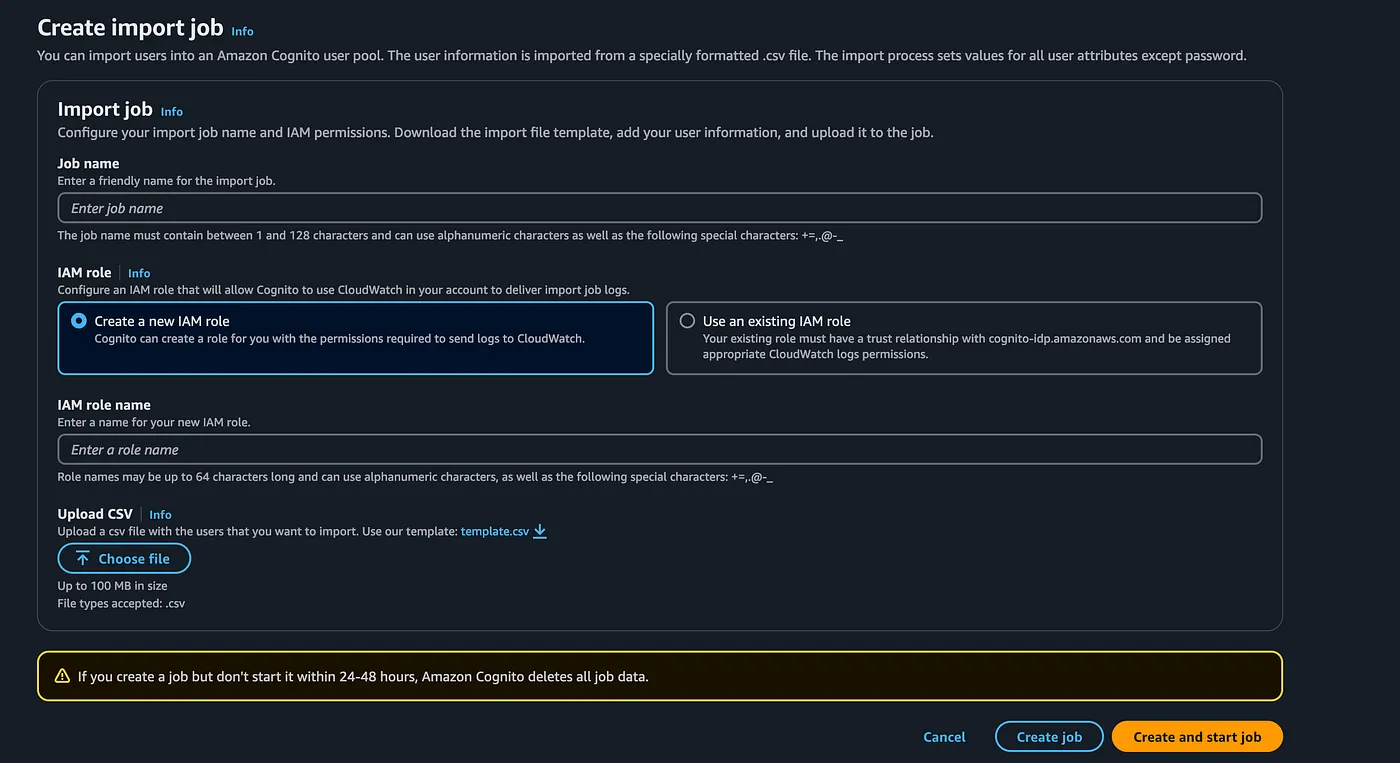
Now that we have exported the user data, the next step is to import it into the new Cognito User Pool. AWS Cognito provides two methods for importing users:
The Cognito dashboard import job is the most straightforward method, especially for large datasets. However, it requires the data to be in CSV format.
Since our export script generates JSON, we need to convert it to CSV format. Here's a script to do that:
#!/bin/bash

# Convert JSON to CSV for Cognito import
INPUT_FILE="users.json"
OUTPUT_FILE="users.csv"

# Create CSV header
echo "email,email_verified,name,preferred_username" > $OUTPUT_FILE

# Extract user data and convert to CSV
jq -r '.[] |
  select(.Attributes != null) |
  [
    (.Attributes[] | select(.Name == "email") | .Value // ""),
    (.Attributes[] | select(.Name == "email_verified") | .Value // ""),
    (.Attributes[] | select(.Name == "name") | .Value // ""),
    (.Attributes[] | select(.Name == "preferred_username") | .Value // "")
  ] | @csv' $INPUT_FILE >> $OUTPUT_FILE

echo "CSV conversion complete. Output saved to $OUTPUT_FILE"
Important Notes:
email and email_verified fields are mandatory for Cognito imports.Prepare the CSV File:
users.json file into a CSV format compatible with Cognito using the above step.Create an Import Job:
Upload and Start Import:
Validate:
If you prefer automating the process or dealing with dynamic data, you can use a script to import users programmatically.
Script with Multi-Threading:
#!/bin/bash

# Variables
USER_POOL_ID="your-source-user-pool-id" # Replace with your Cognito User Pool ID
AWS_PROFILE="source-account-profile"    # Replace with your AWS CLI profile name
AWS_REGION="your-region"                # Replace with your AWS region
INPUT_FILE="part_01.json"                    # Replace with your Input file
THREADS=10                              # Config the threads based on your system configuration

# Export variables for parallel
export USER_POOL_ID AWS_PROFILE AWS_REGION

# Function to import a user into Cognito
import_user() {
  local email="$1"
  local email_verified="$2"
  local name="$3"
  local preferred_username="$4"
USER_POOL_ID: The ID of the target Cognito User Pool where users will be imported.AWS_PROFILE: AWS CLI profile name to authenticate and access resources in the source account.AWS_REGION: The AWS region where the target Cognito User Pool resides.INPUT_FILE: The JSON file containing user data to import.THREADS: Number of threads for parallel execution. Adjust based on your system's capabilities.The script uses jq to process the input JSON file. Each user's attributes are extracted, and relevant fields are prepared for import:
email: The user's email (mandatory for Cognito imports).email_verified: Indicates if the email is verified.name: Optional attribute, only included if non-null.preferred_username: Optional attribute, only included if non-null.The jq command extracts and structures this data into a format that can be processed in parallel.
The script uses GNU parallel to process multiple user entries simultaneously:
--pipe: Feeds the parsed JSON data to parallel tasks.-j "$THREADS": Specifies the number of parallel threads.bash -c: Executes a subshell to process each user record.This ensures high performance, especially for large datasets.
Install GNU parallel:
sudo apt install parallel  # For Ubuntu/Debian
brew install parallel # For macOSThe import_user function creates users in Cognito:
Validations:
email and email_verified are present.Dynamic Attributes:
user_attributes array, including only non-null attributes (name and preferred_username are optional).AWS CLI Command:
admin-create-user to create a user in the Cognito User Pool.--message-action "SUPPRESS".The pipeline breaks down as follows:
jq parses the input JSON file and structures user data into a compact format.import_user function is called, creating the user in Cognito.import-users.sh.chmod +x import-users.sh./import-users.shUser import complete!Migrating users between AWS Cognito User Pools is a critical yet complex task, especially when involving large datasets and changes like switching login methods. This article detailed a step-by-step approach to seamlessly migrate over 50,000 users while transitioning from username to email-based login.
We covered:
With a focus on efficiency, best practices, and automation, this guide equips you to handle Cognito migrations with precision and minimal user impact.
I hope you enjoyed this — let me know if you have any questions or suggestions! Please reach out to me via LinkedIn!
You can find all the scripts in this GitHub repo.